
Before you can begin working in the Q-Shred environment, you will need to download and install Filemaker Pro to your Mac or Windows computer. This article is applicable for version 19 of the software.
You will receive an email from Shredmetrics, LLC containing the necessary links and licensing information for the Filemaker software. Once you receive that email, scroll down until you find the link marked, “Download Page >”

This will take you to your personal download page on the Claris website. From there, scroll down until you see the header, “License Key”.

Here you will see a link marked “Download”, circled in red above. Click this link and allow your computer to save the resulting file wherever it normally saves (usually Downloads). You will not need to find or open this file, as it is the license file for the Filemaker installation.
Next, scroll down until you find, “Your Claris Software”.
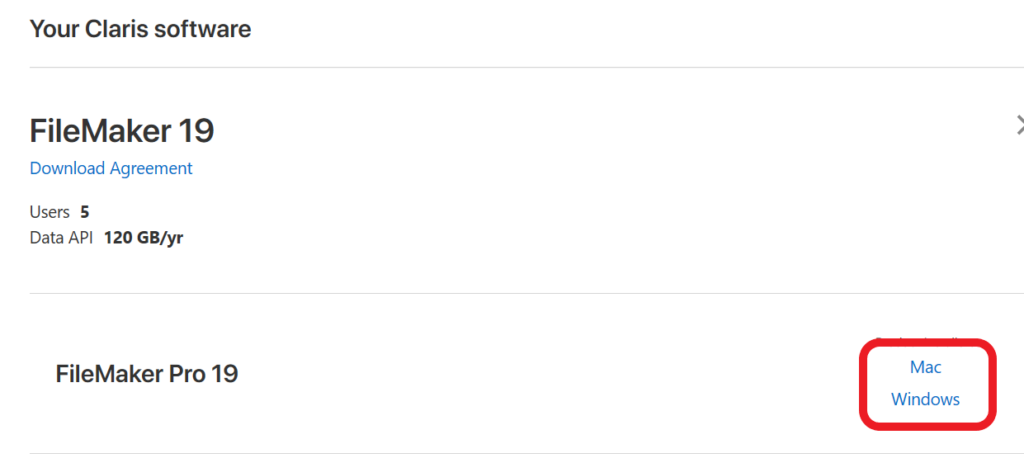
You will see “Filemaker Pro 19” and two links for “Mac” and “Windows”. Click the appropriate link for the machine you are using and let the computer choose where to download. If it asks for permission to run the install software, allow it to do so. The install software will find the license file you downloaded earlier and use it to verify your installation.
From there, proceed as normal with the installation and allow it to place an icon on your desktop. From there, you are ready to move on to the next step of accessing your business’ site using Filemaker Pro.