
**NOTE: Use of the Auto-Pay feature in Q-Shred requires a Heartland account**
The Auto-Pay function is Q-Shred’s answer to a PCI-Compliant “card on file” workflow. Use Auto-Pay to set up a fully automated way to pay invoices to a stored credit card instantly when the invoice is posted in Q-Shred.
To set up Auto-Pay, start in the Billing Details. Click the tab named “Heartland Auto-Pay”.
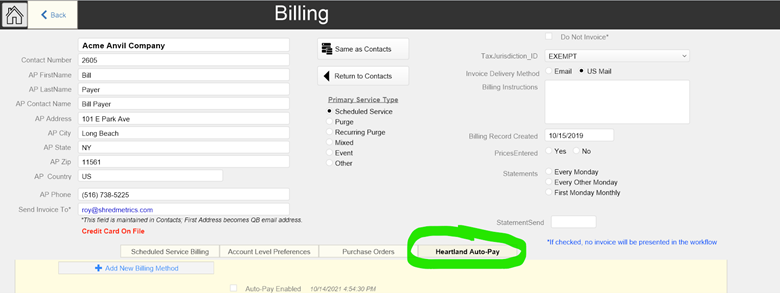
Next, click the button “Add New Billing Method”

This will open a secure connection to a new page on a Heartland server. Enter all of the required card information for the card to be kept on file, and then click the blue “token” button on the lower right of the screen:
An encrypted token will be passed back into Q-Shred from the Heartland server and the account now has a “card on file” with Heartland.
From this point, every time you post an invoice for this customer, the invoice will instantly post to Heartland and be paid in full by the tokenized card on file. The customer will get a paid receipt by email from Heartland and will get a separate Paid-In-Full invoice emailed from Q-Shred.
These actions will continue automatically every time an invoice for this customer is posted, until the card expires, becomes invalid for some reason, or you unclick the “AutoPay Enabled” box on the AutoPay tab:

Two Important Notes:
- When an account has Auto-Pay activated, their invoices will no longer be sent to the Heartland Payment Portal because they are being instantly paid. Old invoices already sent to the portal will remain there, but new Auto-Pay invoices will not appear on the Portal.
- When you use Auto-Pay to pay an invoice immediately upon sending, the process is very similar to what happens if the customer logs onto their payment portal sometime during the day to pay a bill. The bill gets paid at that moment, and the customer will get a paid receipt via Heartland. HOWEVER – and this is important – you the Biller won’t know this until Heartland settles your account, sends you your money, and sends you the report you drag in the next morning. When you drag in the nightly settlement report, it will settle both portal-paid invoices and auto-paid invoices.